Share, Publish & Export a Course
This topic explains how to make your courses available to learners and share them beyond the Coursebox platform. It covers publishing options, access controls, sharing links and embeds, and exporting courses for use in other systems—helping you deliver learning in the format and environment that best suits your audience.
Watch the tutorial videos found in our YouTube Video Library.
Publish a Course
After finalising your course design, the next step is to make it available to learners. Publishing your course in Coursebox is quick and simple. Once published, your content becomes live and accessible to those you've shared it with.
Whether you're launching a new training program or updating existing content, this step ensures your learners receive the most up-to-date version of your course.
Publish a course as Restricted
Go to Share Settings and Click on Restricted to publish the course as a Private course.
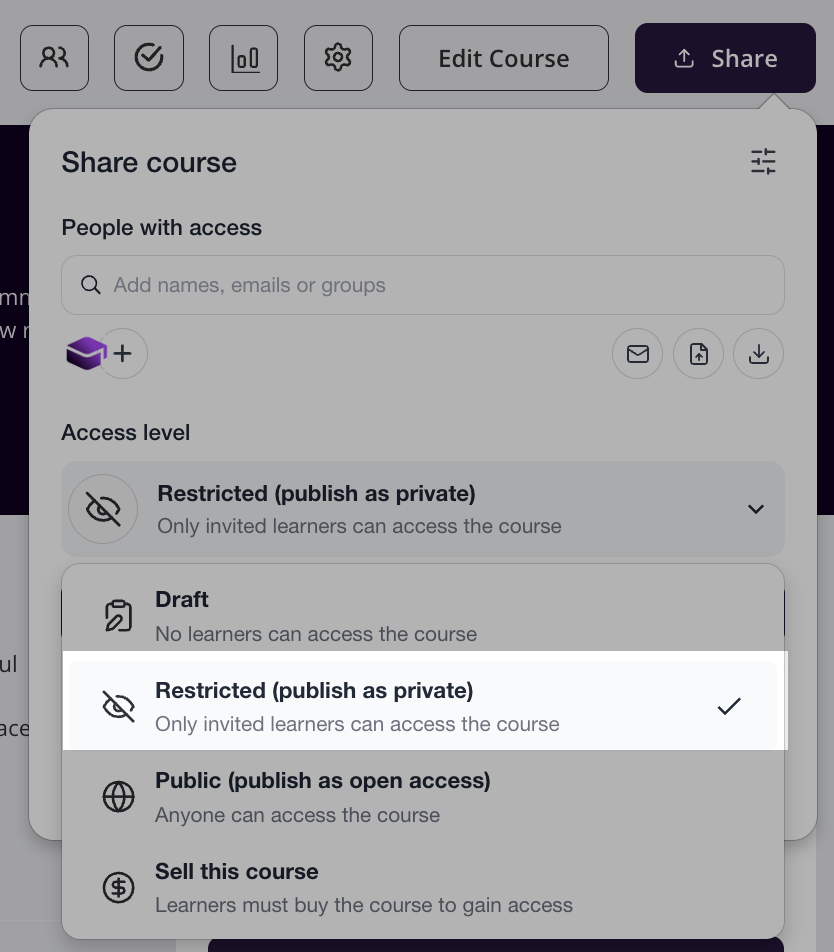
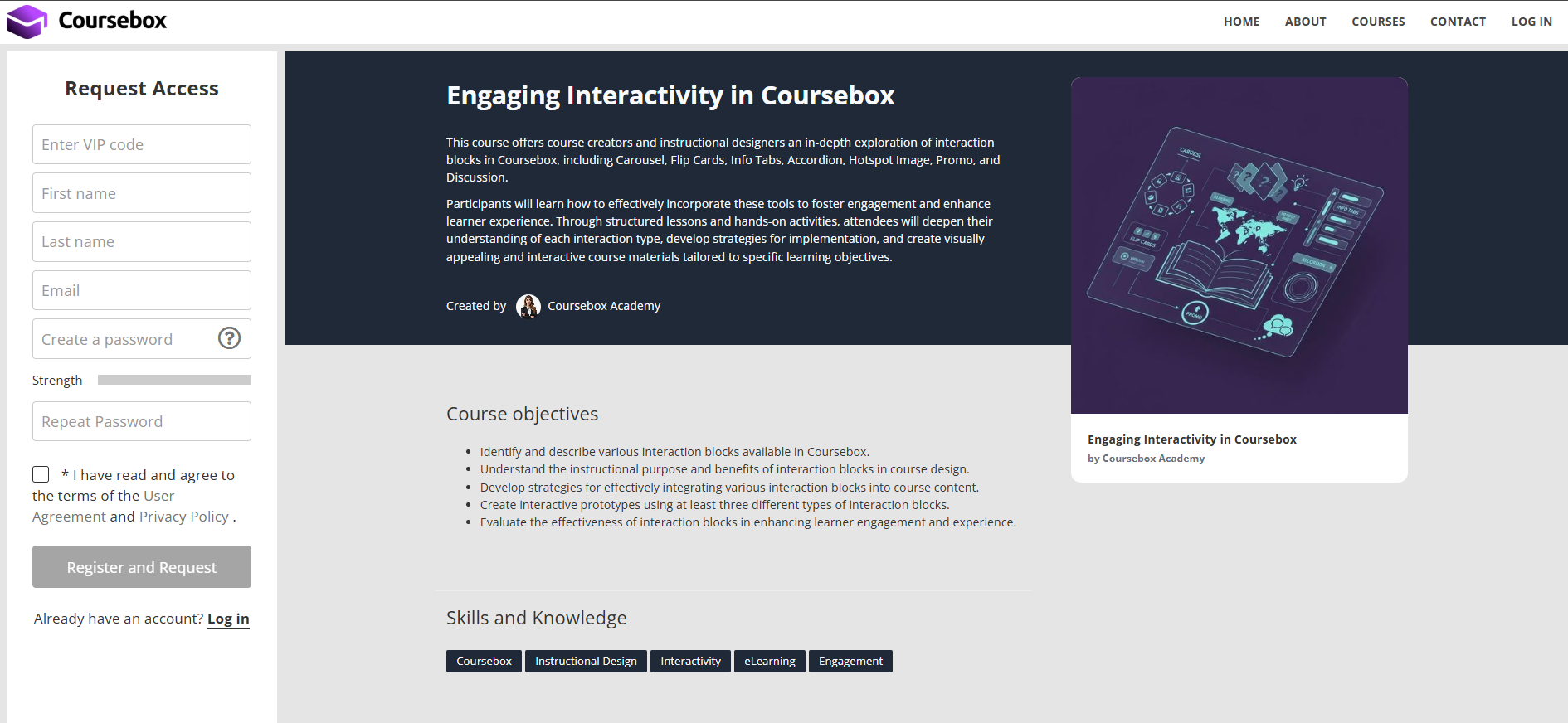
When you publish a course as Restricted, learners will need permission to access the course.
Learners will see “Request Access” to log in.
Publish a course as Public (Free)
When a course is published as Public then anyone with the portal can access the course without the need of approval.
In the Share this course section, go to Learner Access and in select the drop down to click on Public (Free).
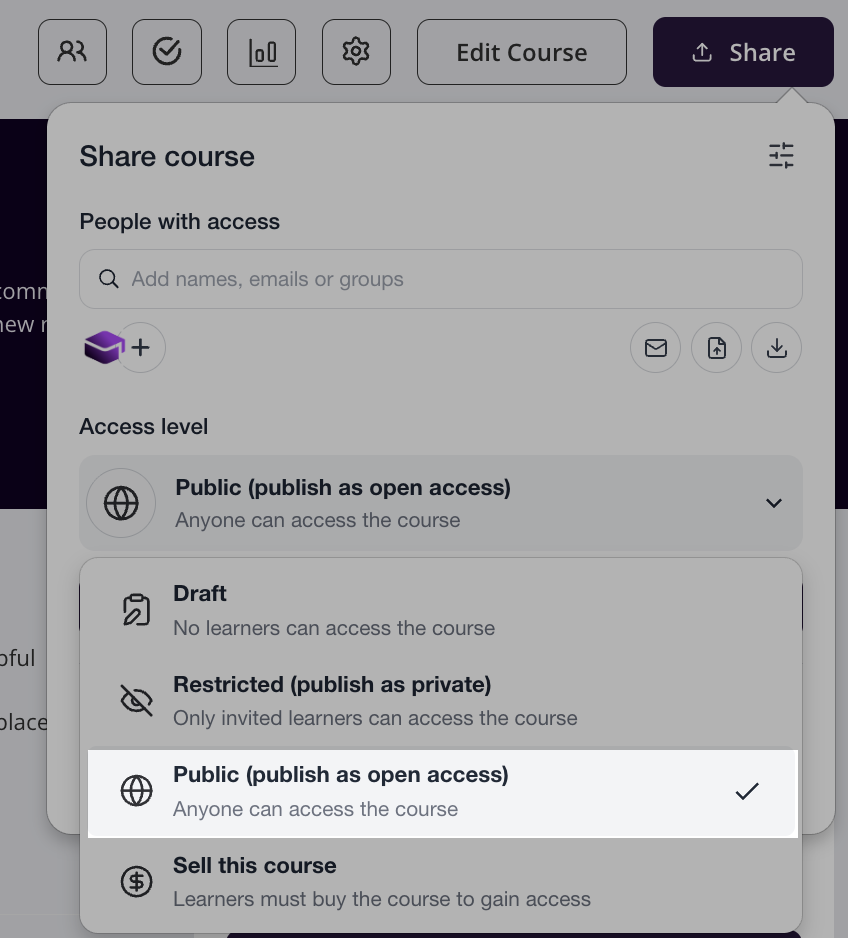
Public courses will have a “Get Started” button on it.
Visibility clarification: Publishing a course as Public does not make it appear in any global or public course catalogue. It simply means anyone who has your course link can access it without needing to request permission. To drive learners to your course, you will still need to share the link directly, embed it on your website, or promote it via your own landing page.
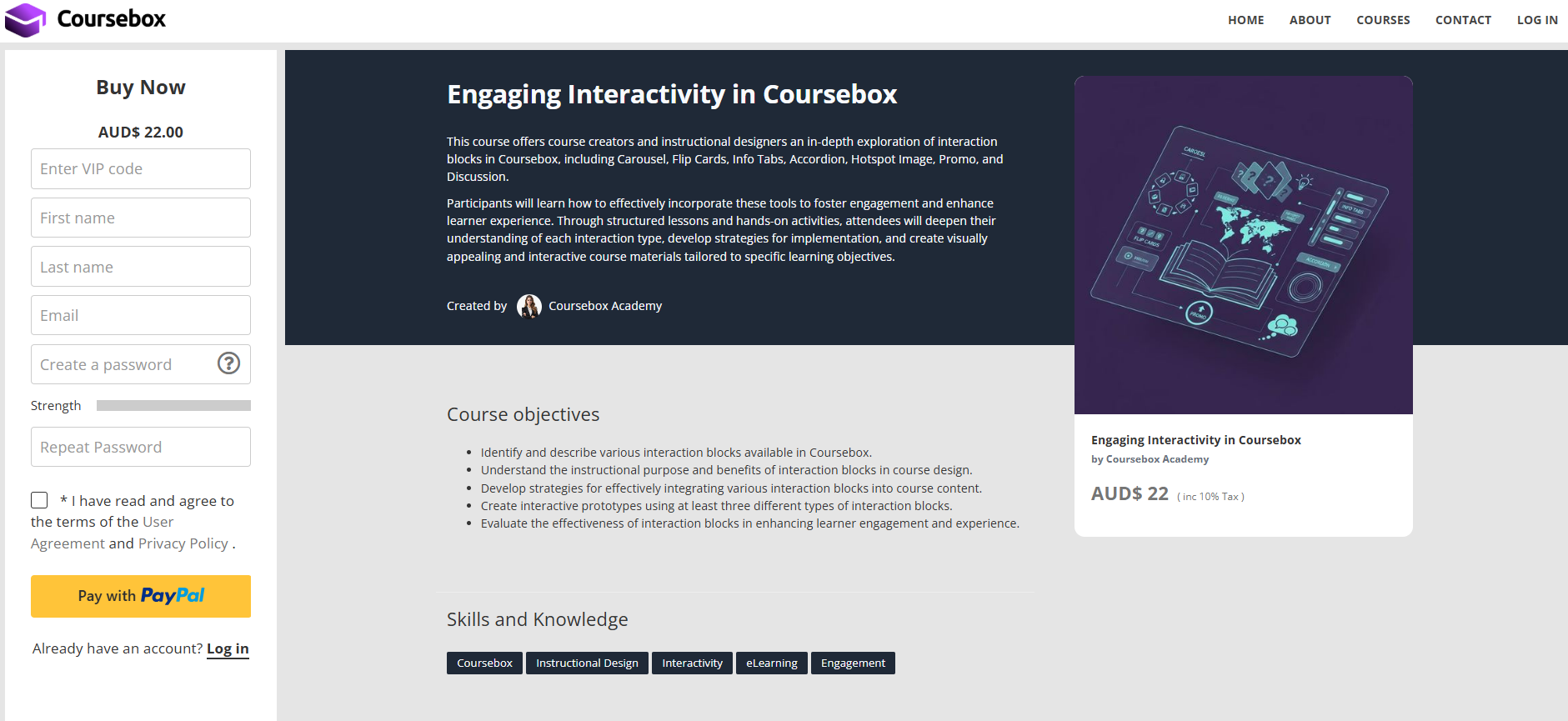
If you make it a paid course then you can publish the course only as Public and “Buy Now” button will appear for the course.
Publish a course for Sale (Sell a course)
In addition to making a course Restricted or Public, you can also Sell this course.
Before you can sell your course you will need to link Stripe or Paypal you can see the information how to do this in the Managing Payment section of this manual.
In the Share this course section, select the drop down to click on Paid.
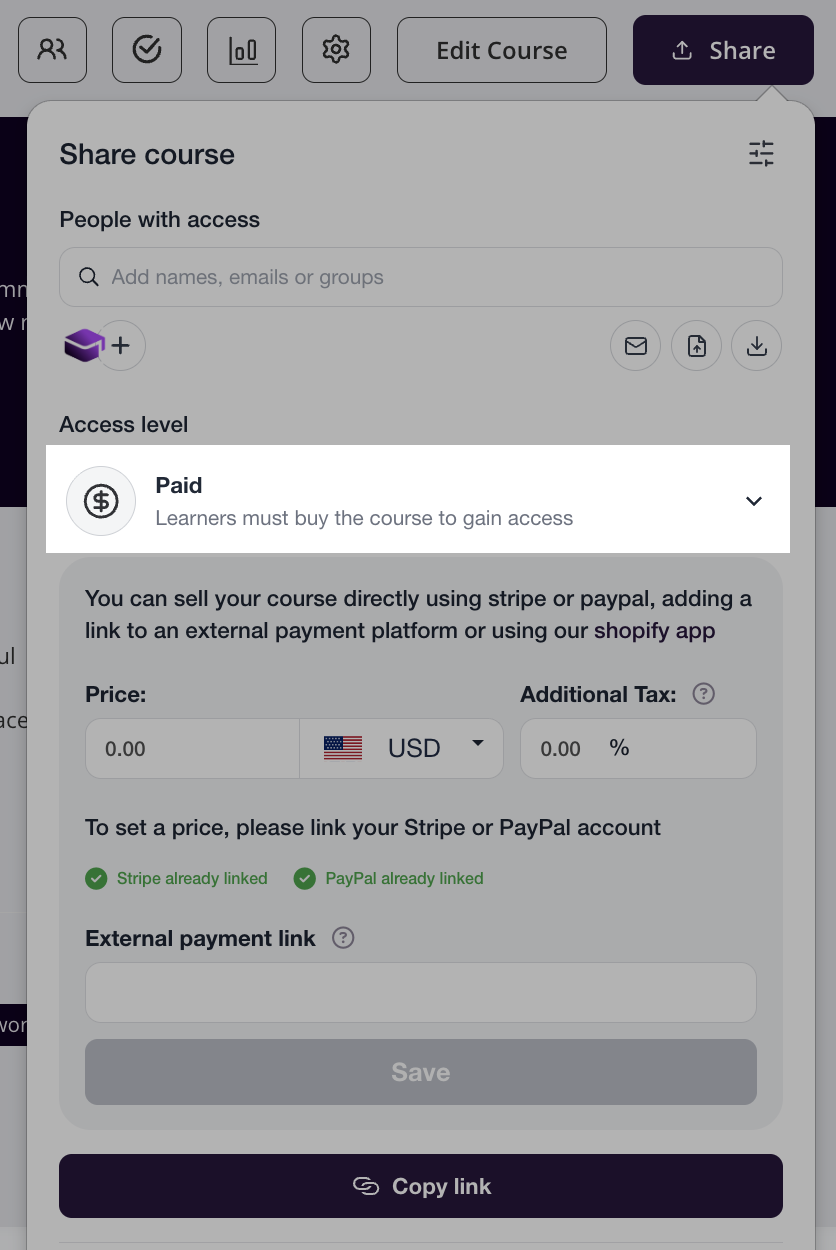
Enter your Price, choose your Currency, and add any Additional Tax % if required.
You’ll now see Stripe and PayPal as available payment methods (if both are linked).
The learners will then be able to purchase the course.
Share a Link to a course
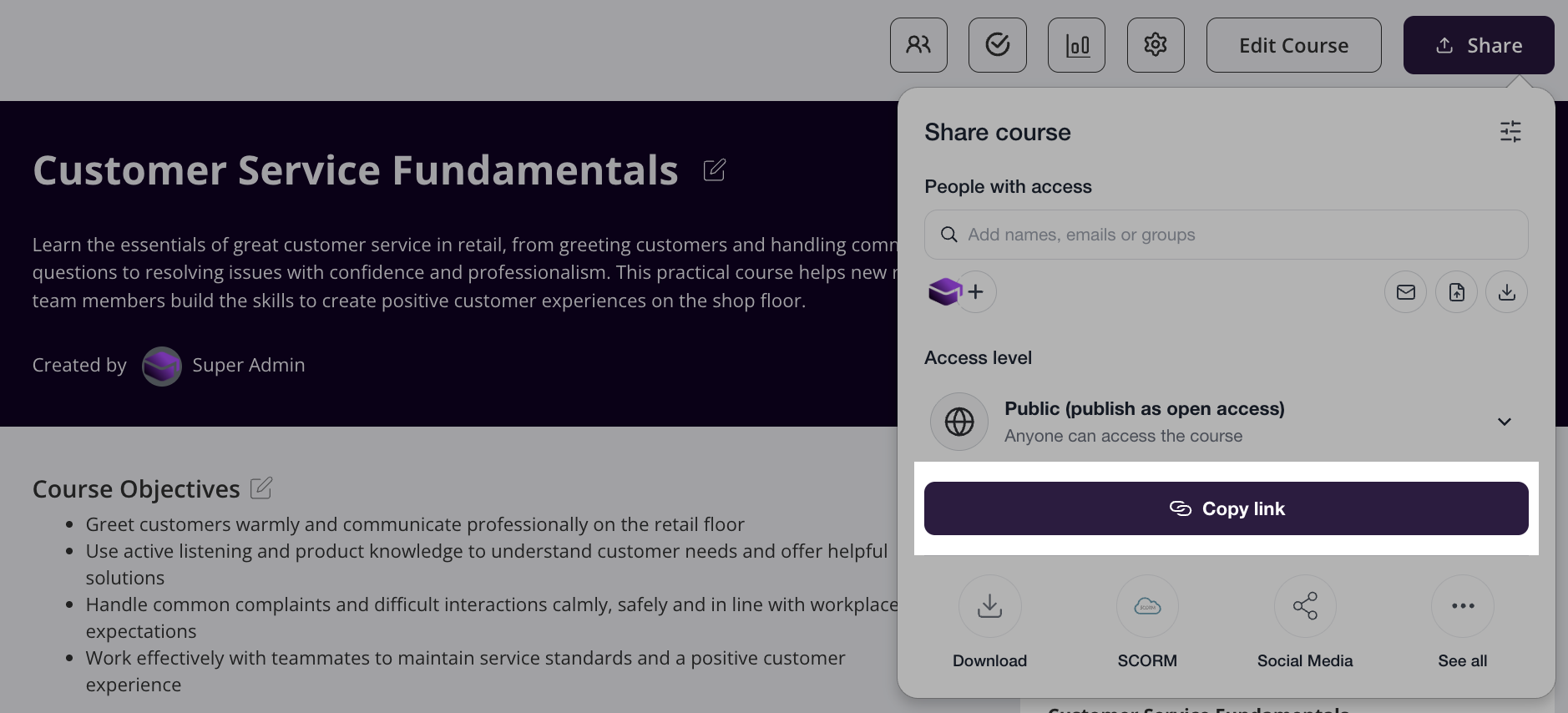
On any course, navigate to the course page and share icon > share the link.
Choosing the Right Export or Integration Method
Include guidance such as:
HTML & PDF exports
These are static formats and do not include videos, interactions, or AI-generated visuals. Use these formats only for reference or offline viewing.LTI & SCORM
These are intended for integration with other LMS platforms. Compatibility depends on the target system. They are not recommended for CRMs or website builders.Embedding on external websites
To preserve videos, interactivity, and design, publish your course and embed it using an iframe.CRM integrations (e.g. GoHighLevel)
Use Zapier to automate enrolments. Course content should still be delivered via Coursebox.
Download a course as HTML , Pdf or Marking Guide Pdf
Coursebox gives you multiple export options so you can easily share or host your course outside the platform. Whether you're saving a course for offline use, uploading it to a Learning Management System (LMS), or sharing it as a PDF, Coursebox offers flexible formats to suit your needs.
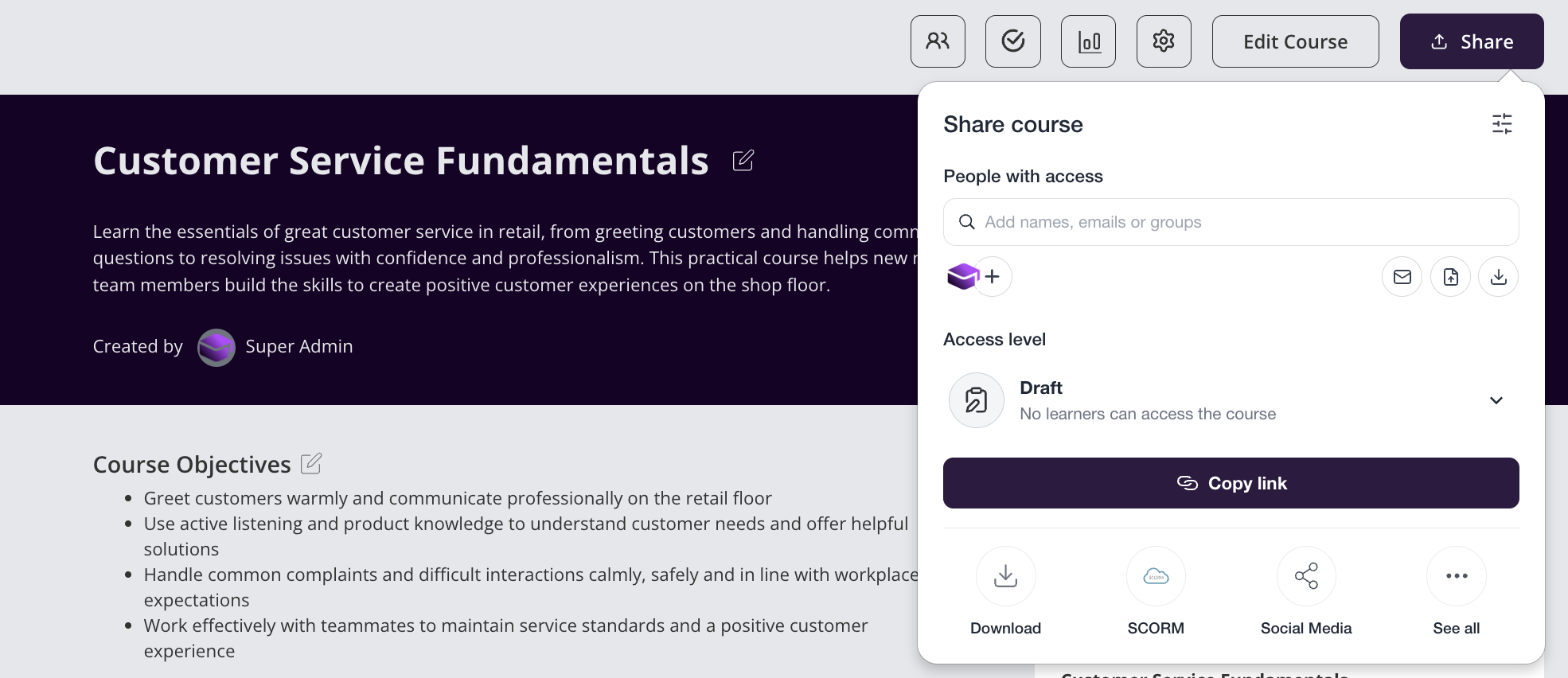
On any course, click the Share button to open the Share panel, then select Download — the options for PDF or HTML will appear.
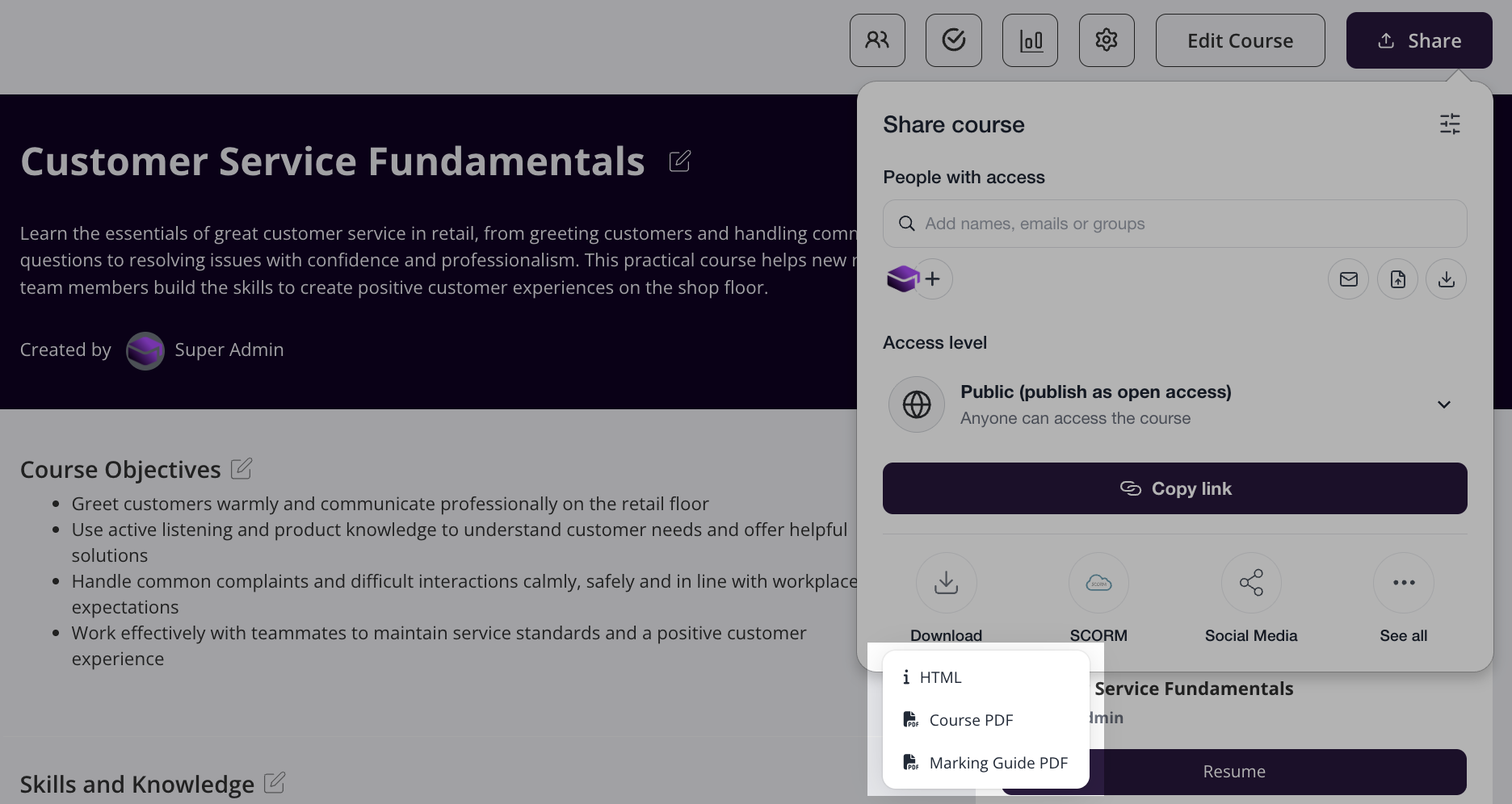
The PDF and HTML backups include the written course structure and content, including learning text, quizzes, assignments, and user-uploaded images. It excludes interactions (eg accordions, SCORM embeds etc), audio recordings, and video recordings. These items may be saved at the course page level in most cases.
Share a Course on Social Media
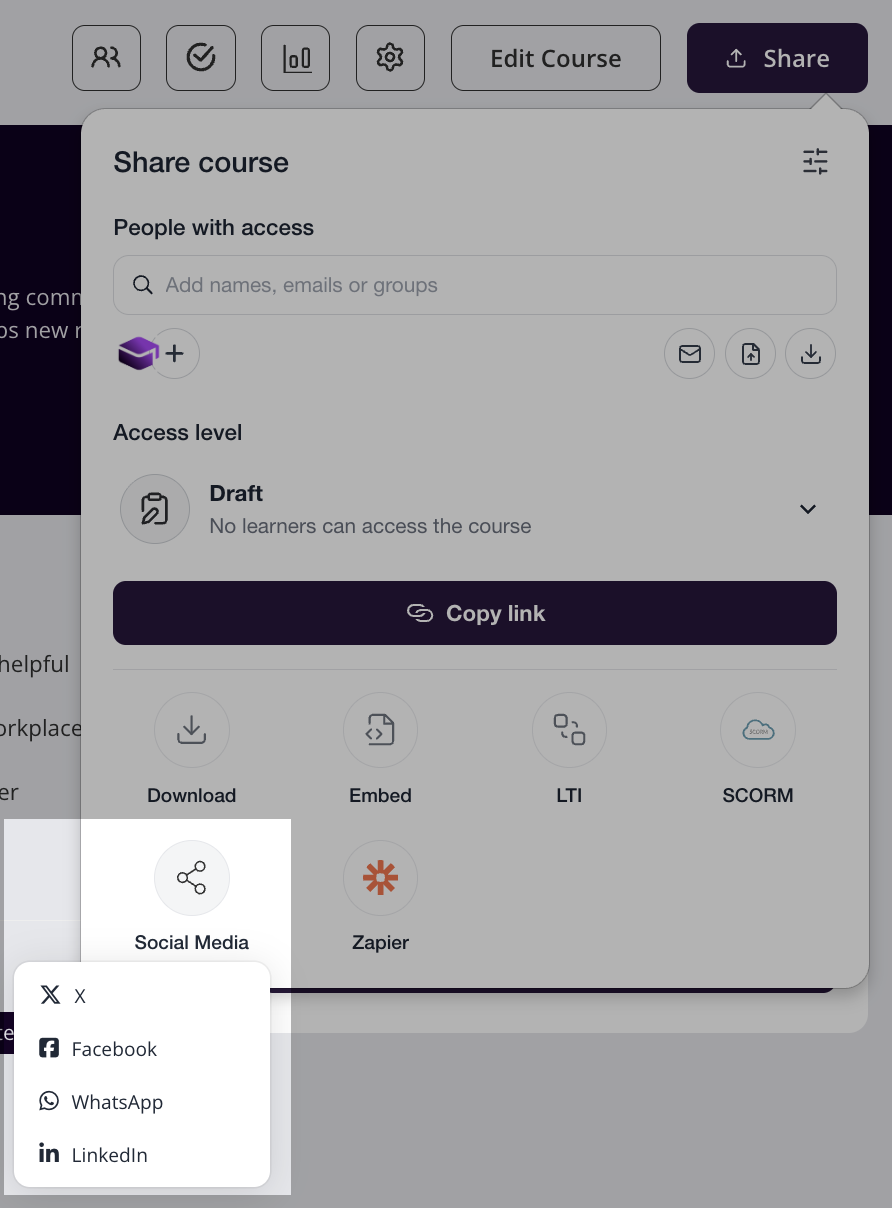
Coursebox now includes social share buttons in the course Share panel, making it easy to share your published courses directly to social media platforms. This is a great way to promote your courses and drive learner enrolment.
The steps are:
Open your course in the Course Editor.
Click the Share button (top right of the course editor) to open the Share panel. Coursebox does not have a button labelled "Publish" on courses — publishing happens from inside the Share panel.
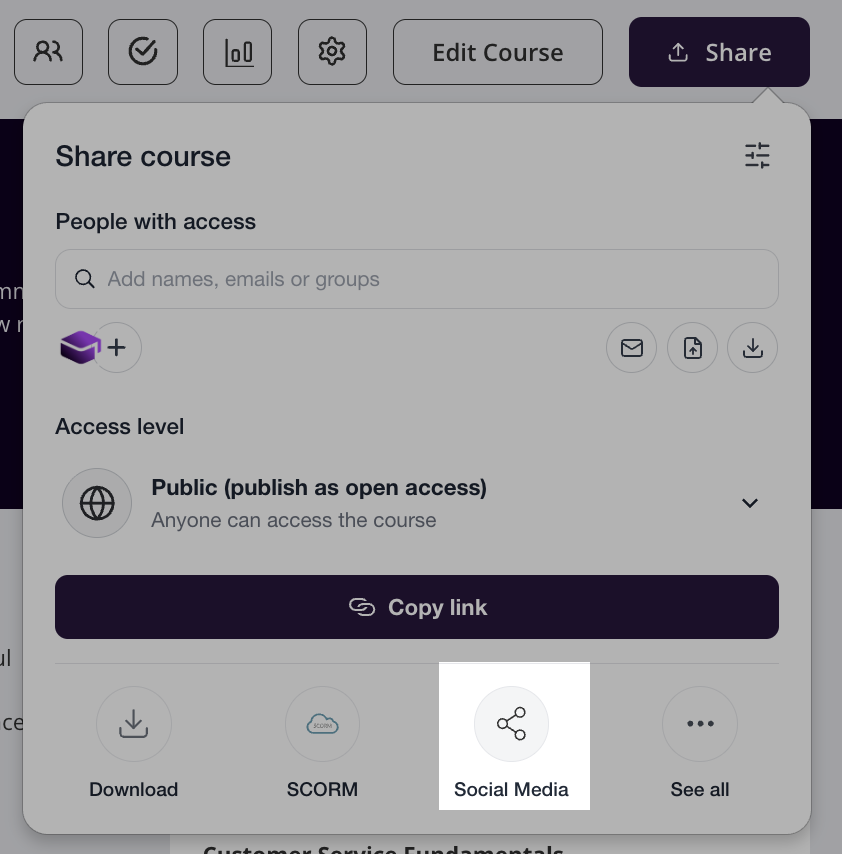
Click the platform you want to share to (e.g. Facebook, LinkedIn, Twitter/X).
A pre-populated post will open in a new tab — review and publish from there.
Tips for Sharing
Make sure your course has a cover image set before sharing — this will appear as the preview image on social media.
Ensure your course is published and public before sharing the link.
Add a compelling course description to improve engagement when the link is shared.
Copy a course iFrame
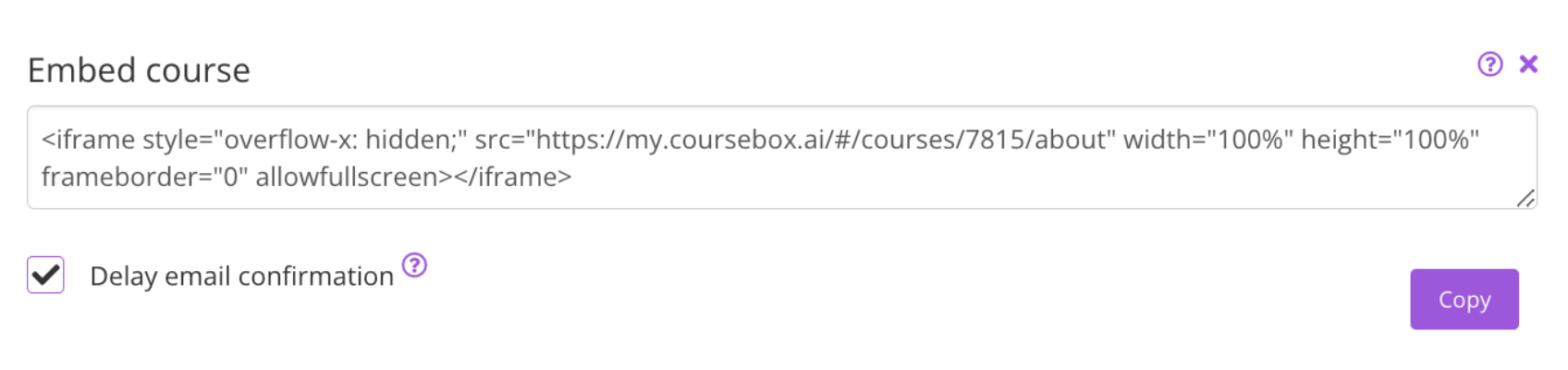
Embedding your Coursebox course on other websites lets you share learning content seamlessly without asking learners to log into multiple platforms. Whether you’re adding it to your company intranet, a WordPress site, or an LMS, the share feature gives you an iframe code that can be pasted anywhere HTML is supported. This makes it easy to showcase your course in the exact environment where your learners already engage.
On any course, navigate to the course page and click the share icon > copy the iframe to copy the code.
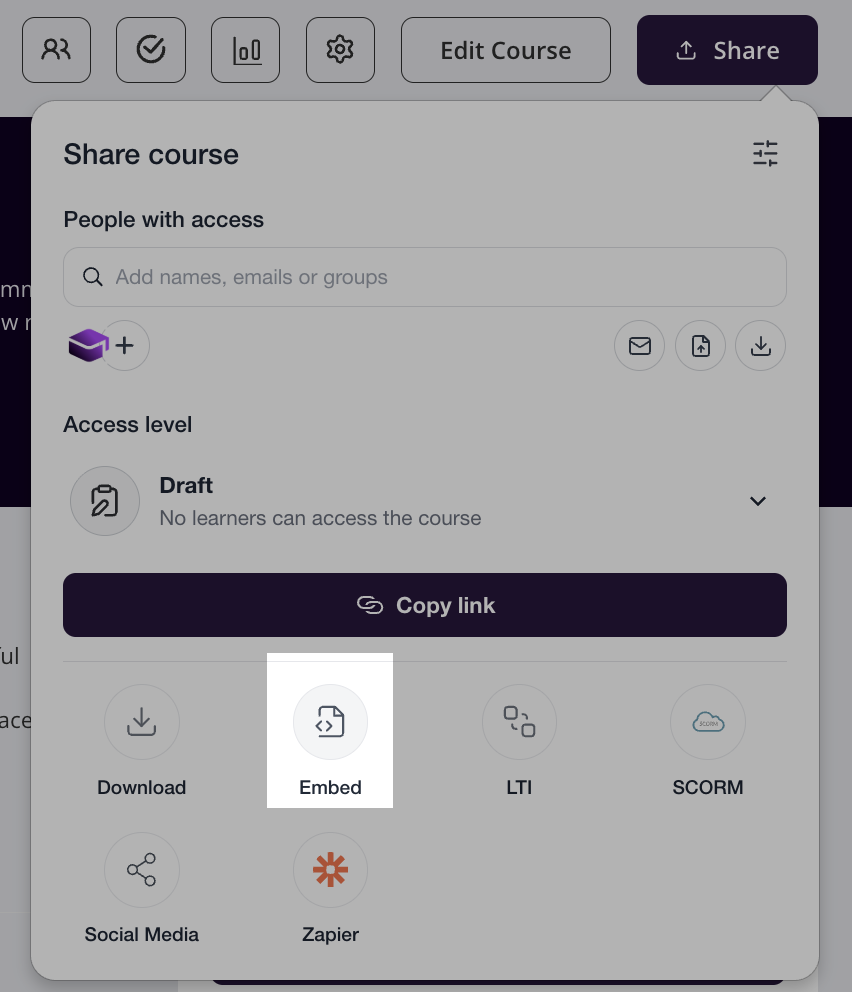
Then paste this using HTML anywhere on the web.
Share a course to LMS - LTI
Coursebox acts as Provider for LTI 1.3 that enables you to add course box courses into any LTI 1.3 compliant Branded Training Platform. LTI enables a secure communication bridge between the Branded Training Platform and Coursebox to launch the course, pass the grades.
The integration steps are very straightforward and easy,
Open the Course in Coursebox, click on share button and click on LTI.
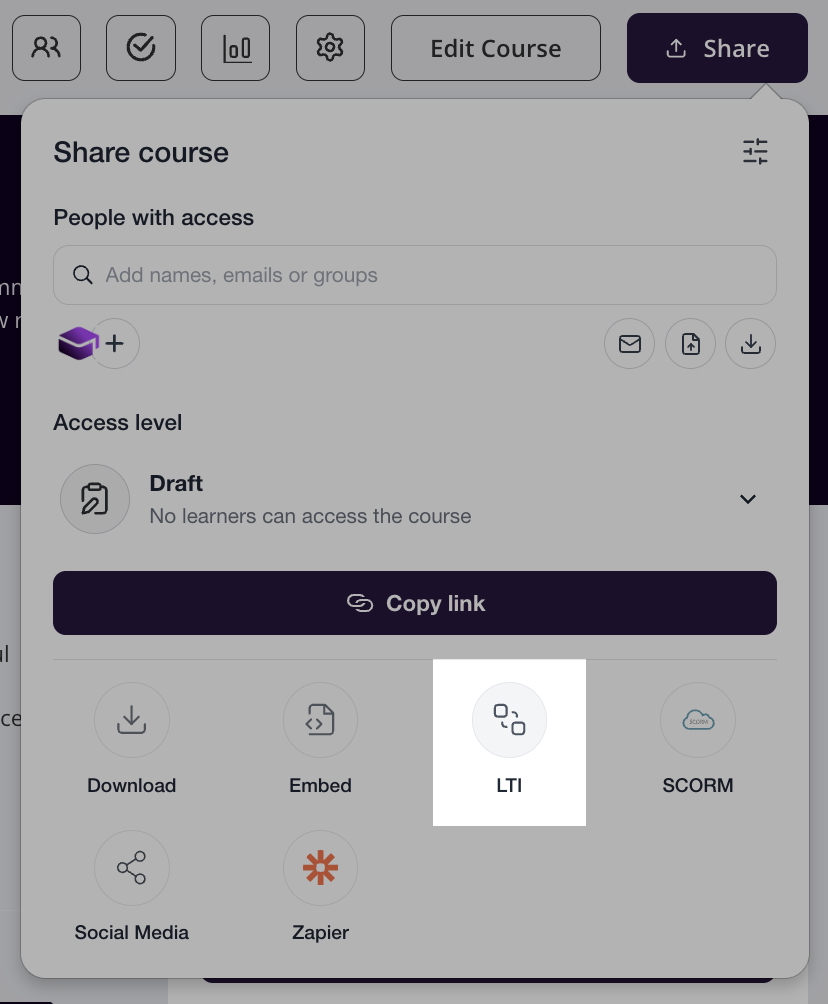
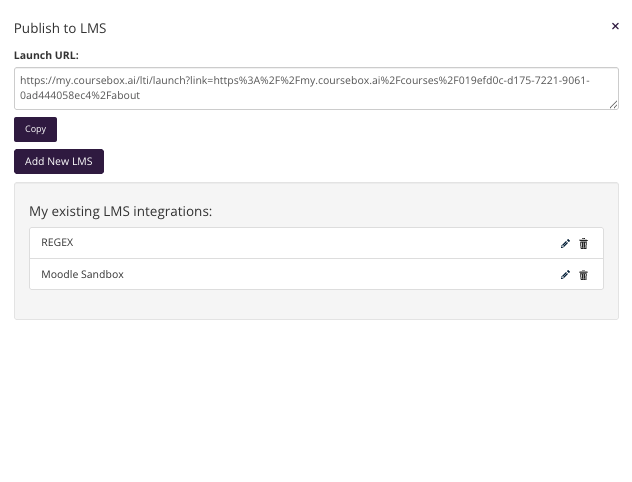
It will open a popup, where you can add your Branded Training Platform. Click ‘Add New Branded Training Platform’.
You will see the form with Coursebox LTI details. You will need to use these details to create an LTI Tool in your Branded Training Platform.
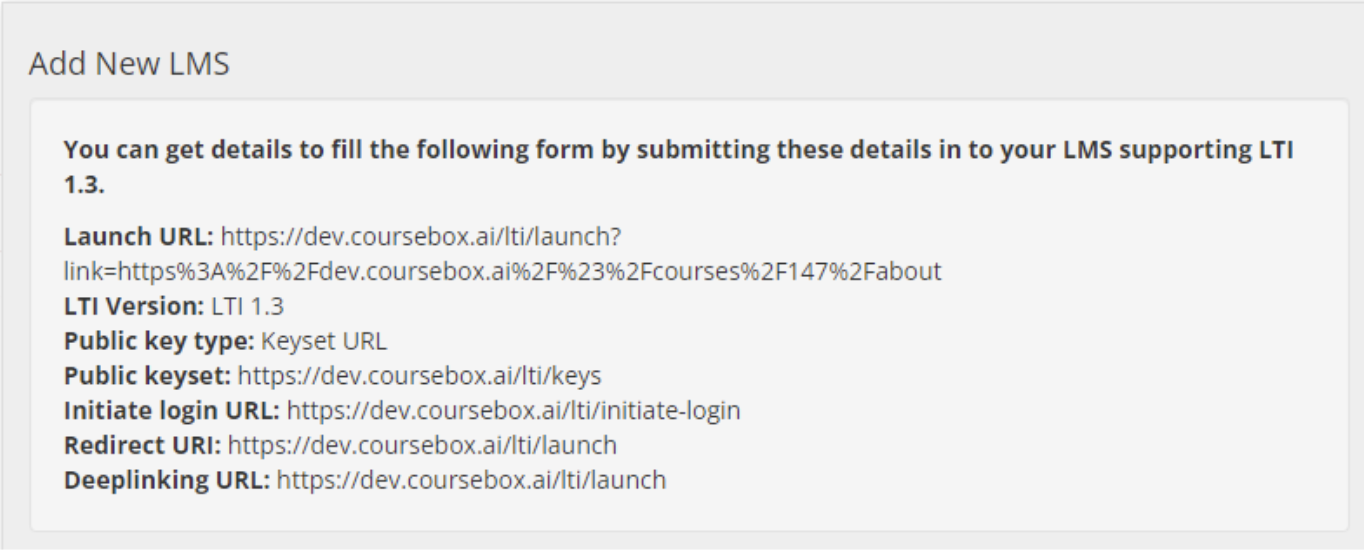
Once you enter the above details in your Branded Training Platform, you will get details from your Branded Training Platform to fill out the form in Coursebox. Fields details are mentioned in the provided Field Labeling Chart below.
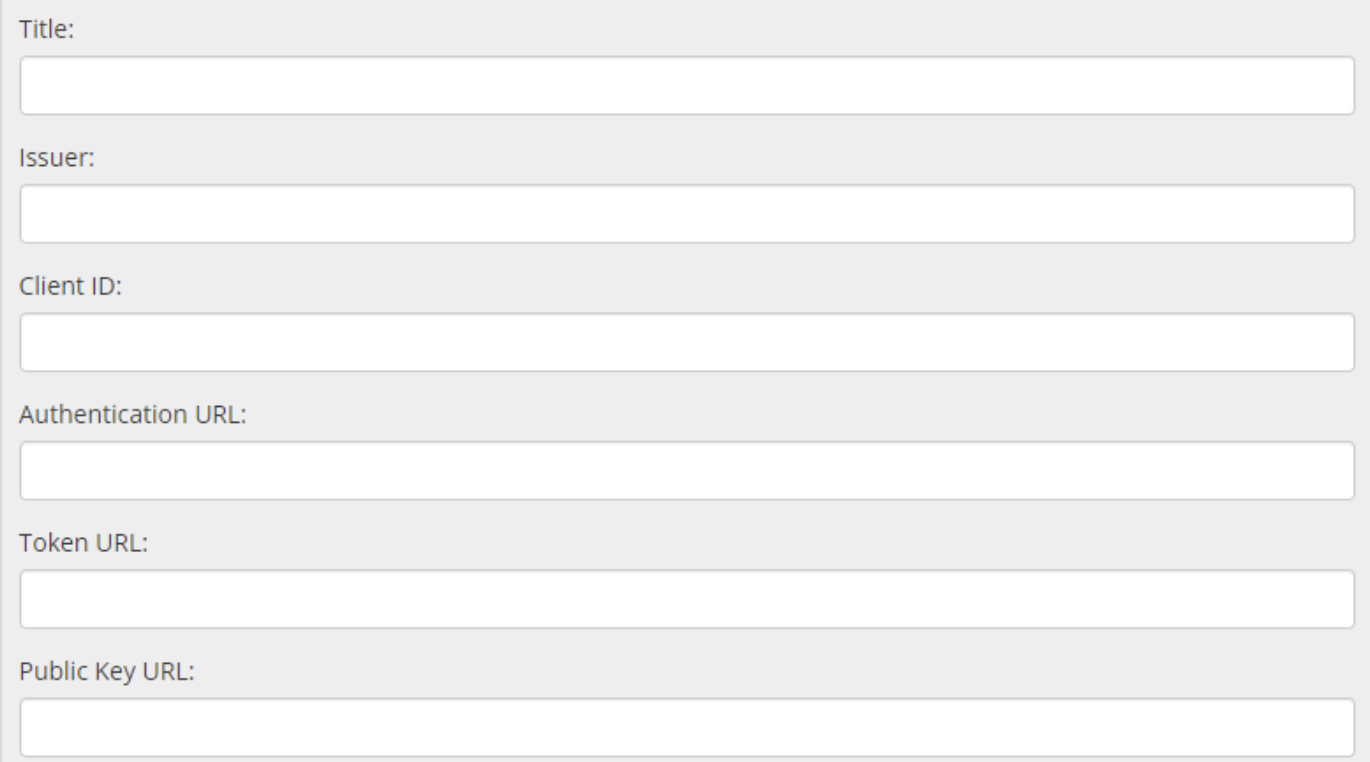
Now, you can start adding courses using the LTI Tool according to the guidelines provided in your Branded Training Platform Documentation.
Field Labeling Chart:
Following is the chart for field labels to give an idea to handle the LTI Integration process.
Coursebox | Moodle | Schoolbox | CanvasBranded Training Platform |
|---|---|---|---|
Launch URL | Tool URL | Launch URL | Target Link URI |
LTI Version | LTI version | Version | N/A |
Public key type | Public key type | N/A | JWK Method |
Public keyset | Public keyset | JSON Web Key Set URL | Public JWK URL |
Initiate login URL | Initiate login URL | OpenID Connect Initiation URL | OpenID Connect Initiation URL |
Redirect URI | Redirection URI(s) | N/A | N/A |
Deeplinking URL | Content Selection URL | Deep Linking URL | Target Link URI under |
Issuer | Platform ID | Issuer | https://canvas.instructure.com |
Client ID | Client ID | Client/Deployment ID | Developer Key ID available in details |
Authentication URL | Authentication request URL | OpenID Connect Authentication URL | https://canvas.instructure.com/api/lti/authorize_redirect |
Token URL | Access token URL | oAuth Access Token URL | https://canvas.instructure.com/login/oauth2/token |
Public Key URL | Public keyset URL | JSON Web Key Set URL | https://canvas.instructure.com/api/lti/security/jwks |
Export a Course to SCORM 1.2 and 2004
Coursebox enables experts to export courses as in SCORM format, including 1.2 or 2004.
When you export a Coursebox course as SCORM, you’re packaging your Coursebox pages, media, and completion logic into a standard zip that any SCORM-compliant LMS can play. The learning experience is still powered by Coursebox—the player, navigation, and tracking behaviours come from Coursebox’s authoring and runtime—just delivered through your LMS.
Key things to know:
Edits after export: Most content edits — text, images, and quiz wording on existing pages — show up on the next launch in your LMS without a re-export. Re-export when the course structure changes (for example, adding or removing pages).
Branding: Your Coursebox styling and layout remain intact.
Tracking: Choose SCORM 1.2 (widely supported for completion/score) or SCORM 2004 (v3/v4) for advanced sequencing and bookmarking.
How Coursebox SCORM Works (Wrapper vs. Standalone)
A Coursebox SCORM package is a wrapper, not a standalone bundle. The ZIP you download is intentionally small — often around 10 KB — because it contains pointers and a launcher, not the full course content. When a learner opens the package inside your LMS, the wrapper calls back to Coursebox to load the actual content, track progress, and (for SCORM 2004 / LTI 1.3) report grades.
This is why your course must stay published in Coursebox and your account must stay active for the wrapper to work.
What’s inside the ZIP:
A SCORM-compliant manifest (
imsmanifest.xml)A small launcher (
index.htmland supporting files)Configuration pointing the launcher back to your published course on Coursebox
What’s not inside the ZIP:
Course pages, images, videos, or audio
Quizzes or interactive blocks
Anything the learner sees in the course
That content stays on Coursebox and is served at runtime.
Why we built it this way:
Most content edits propagate instantly. Edits to existing pages — text, images, quiz wording — show up on the next launch in your LMS without a re-export. Re-export only when the course structure changes (for example, adding or removing pages).
Smaller upload to your LMS. LMSs with file-size limits stay happy.
Better tracking. Coursebox handles event capture and surfaces it back to the LMS through standard SCORM CMI calls.
Troubleshooting SCORM
“My SCORM ZIP is only ~10 KB — is it broken?”
No — that size is expected. The wrapper is small by design. The content lives on Coursebox.
“The course shows a blank screen or ‘content unavailable’ inside my LMS.”
Check, in order:
Is the course published in Coursebox? Open the course → Share → confirm visibility is set to Published.
Is your Coursebox account active (not paused, suspended, or past due)?
Did you upload the ZIP as a
.zip? Some LMSs require you not to unpack it first.Does your LMS allow the launcher to open
coursebox.aiin an iframe? Some LMSs block third-party iframes by default — check your LMS’s iframe and mixed-content settings.
“HTML export works but SCORM doesn’t load.”
That’s expected behaviour, not a bug. HTML export is a static one-time snapshot (text only, no interactions). SCORM is a live wrapper. Use HTML if you need static; use SCORM if you need progress tracking and live updates.
“I need progress and grades to flow back to my LMS.”
Use SCORM 2004 (not SCORM 1.2) or LTI 1.3 if your LMS supports it. SCORM 1.2 reports completion only; SCORM 2004 reports completion plus interaction-level data; LTI 1.3 also supports grade passback to the LMS gradebook.
Export to SCORM
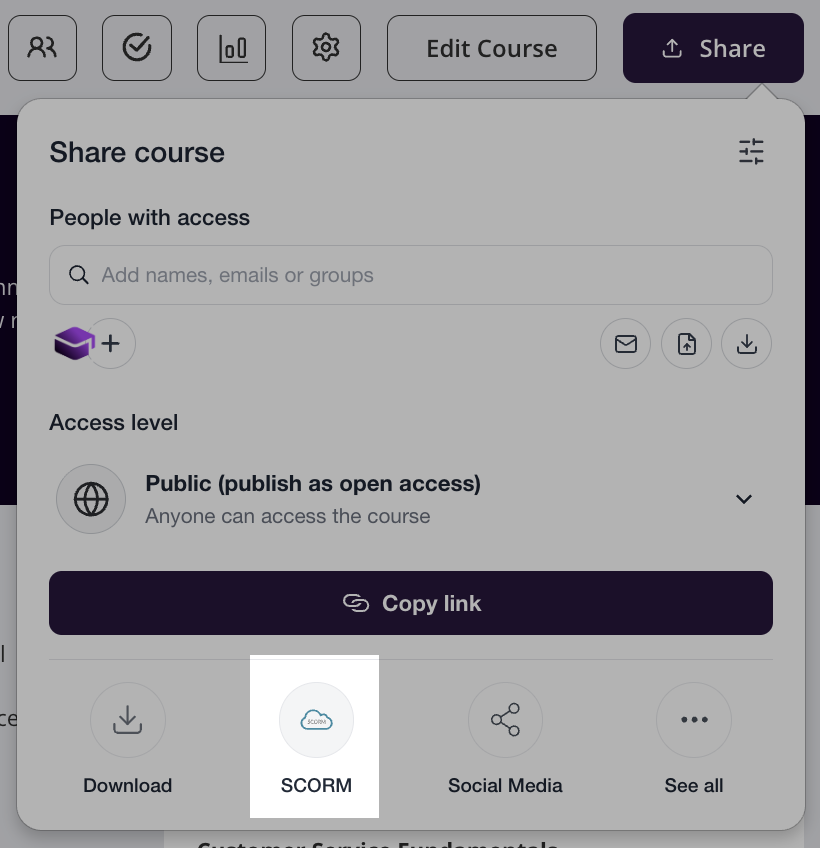
In the Share panel, set the course visibility to published, then select the SCORM version (1.2 or 2004) required for upload to your LMS.
Note that this requires a published live sync to the course to take advantage of the AI and related live features.
Upload to Your LMS
Each LMS has slightly different steps for uploading SCORM packages.
Always follow the official documentation for your platform to ensure compatibility. Below are links to SCORM guidelines for leading LMSs:
Moodle – SCORM activity – MoodleDocs
Blackboard Learn – Add a SCORM content package (Ultra)
Canvas – Import SCORM files as an assignment
D2L Brightspace – Import and Manage SCORM
TalentLMS – SCORM-Compliant LMS Features
SAP Litmos – SCORM-compliant courseware
Absorb LMS – SCORM/AICC/Tin-Can courses – Absorb Help
LearnDash – SCORM and xAPI Support
Schoology – Course Materials: SCORM Packages
Totara Learn – Add a SCORM activity
Open LMS – SCORM Content Creation Overview
Cornerstone OnDemand – Cornerstone SCORM support overview
iSpring Learn – Uploading SCORM to iSpring Learn
SCORM Cloud (testing) – Upload SCORM course to SCORM Cloud
NEW- Export to Self-Hosted SCORM
Coursebox also supports exporting your course as a Self-Hosted SCORM package. This option generates a fully standalone package that can be hosted on your own server or LMS without requiring an active connection back to Coursebox.
Open your course in the Course Editor.
Click the Share button (top right) to open the Share panel.
Click the SCORM option to expand the SCORM export menu.
Select Export to Self-hosted SCORM.
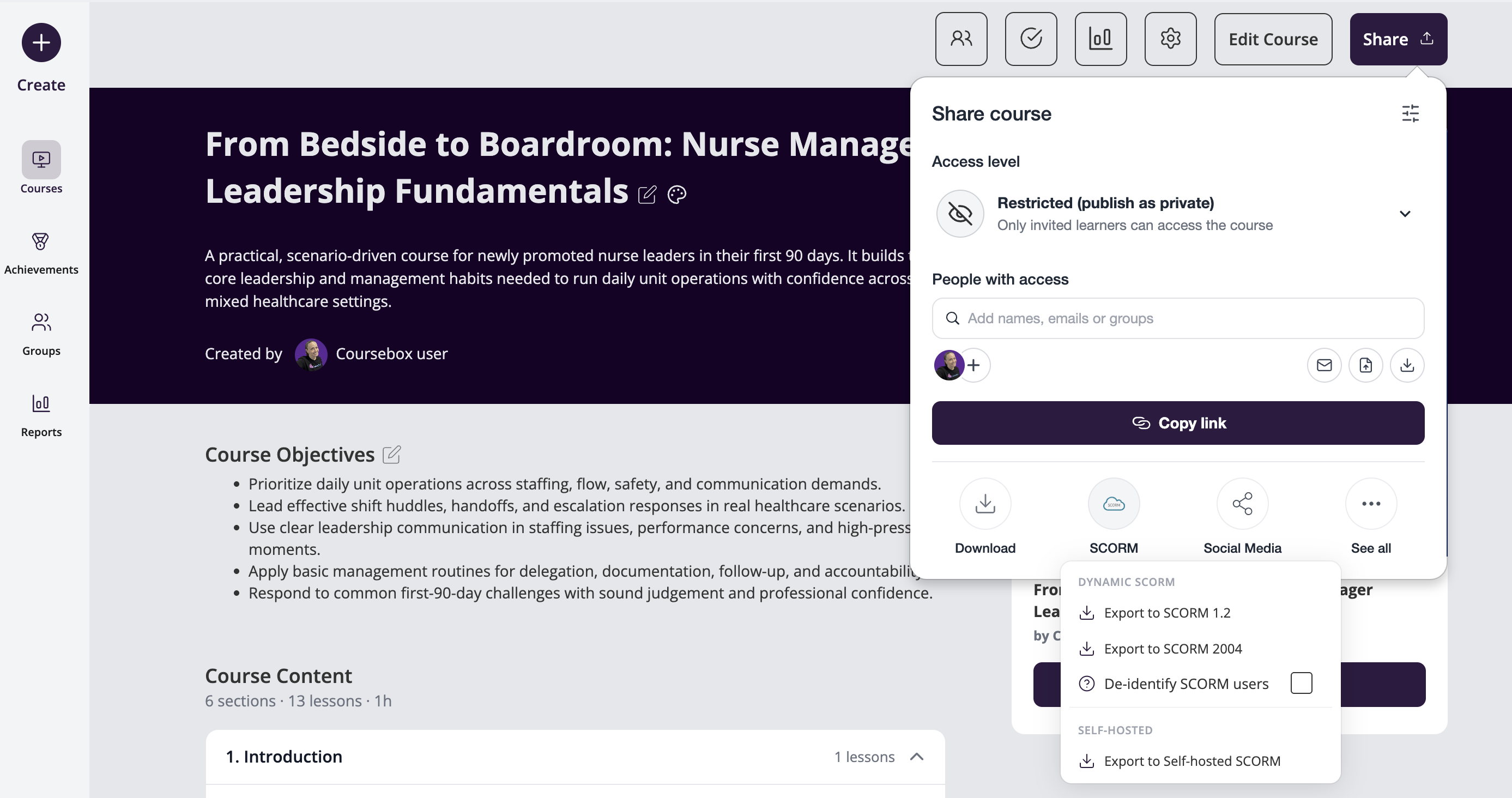
A Self-hosted SCORM Limitations dialog will appear. Review the limitations, then click Continue to proceed with the download.
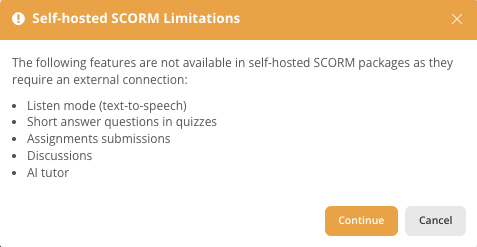
Self-Hosted SCORM Limitations
The following features are not available in self-hosted SCORM packages as they require an external connection:
Listen mode (text-to-speech)
Short answer questions in quizzes
Assignments submissions
Discussions
AI tutor
Uploaded SCORM content
NEW- Anonymous Users via SCORM (where enabled)
Coursebox supports anonymous user access via SCORM when hosted in external LMS environments. This means learners can launch and interact with Coursebox courses embedded in SCORM packages without requiring a Coursebox login.
Use case examples:
SCORM-based compliance training with no user registration
One-click access via corporate LMS with limited tracking
Note: Anonymous SCORM users are available by default and can be enabled using the checkbox in the SCORM export tooltip.
Both anonymous and non-anonymous SCORM exports do not require learners to register in Coursebox.
The key difference is that with anonymous SCORM, no personal data (such as name, surname, or email address) is stored in Coursebox — only the student ID is recorded.
Important Note on SCORM Integration:
Before exporting your course to SCORM 1.2 or SCORM 2004, please be aware that the SCORM integration requires an active account and a live, published course.
Active Account: To ensure seamless integration and usage of SCORM functionality, your account must be active. If your account is not active, the SCORM integration will not work properly.
Live and Published Courses: You cannot export to SCORM from a course that is still in draft or unpublished status. The course must be published and live in your account for the SCORM export to function correctly.
Do Not Cancel the Course: If you cancel or unpublish your course after exporting it to SCORM, the integration will stop working. The SCORM package will no longer be linked to the course, and updates or tracking will not be reflected. Always ensure the course remains live and published for continuous SCORM integration.
By following these guidelines, you ensure that your SCORM exports will continue to function properly, and your course data remains synced with your LMS.
Examples of Published Course Experiences
Coursebox courses can be published in different ways depending on how organisations want learners to discover, purchase, and access training. Below are real-world examples showing how different organisations use Coursebox publishing options.
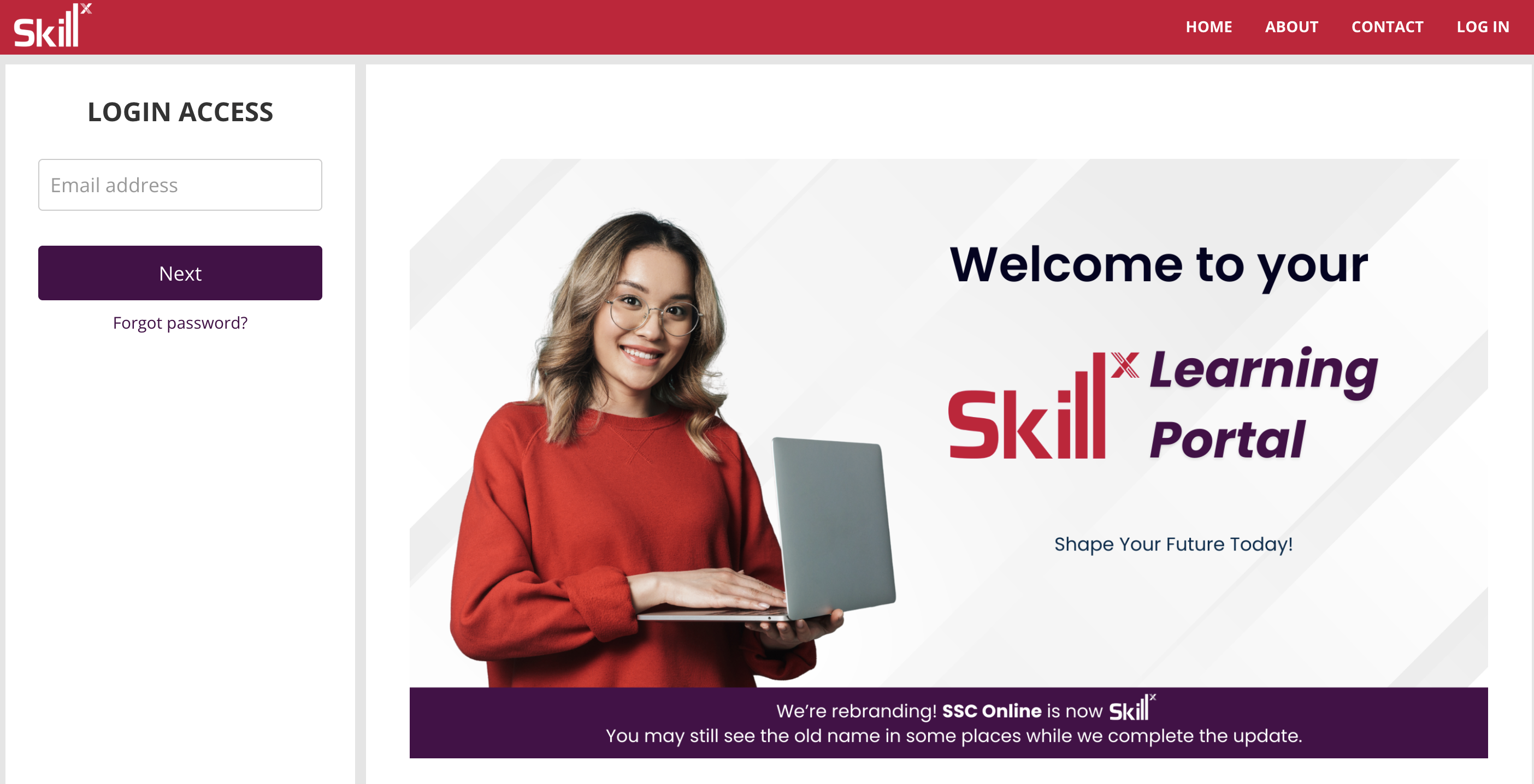
[Shopify site] Skills SSC
https://skills.ssc.edu.au/collections/all
Learner portal: https://onlinecourses.ssc.edu.au/
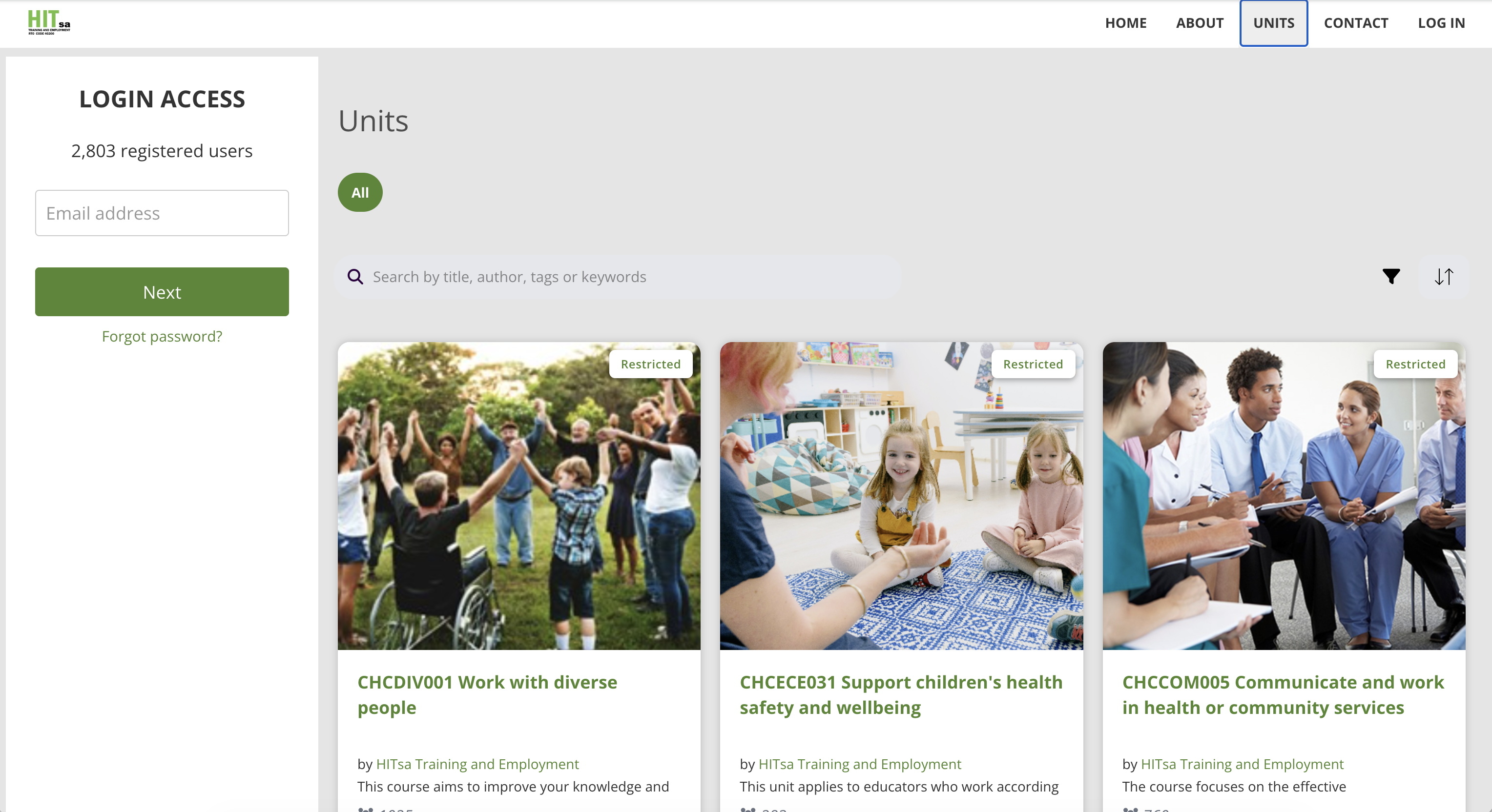
[WordPress site] HITSA
https://www.hitsa.com.au/
Learner portal: https://learn.hitsa.com.au
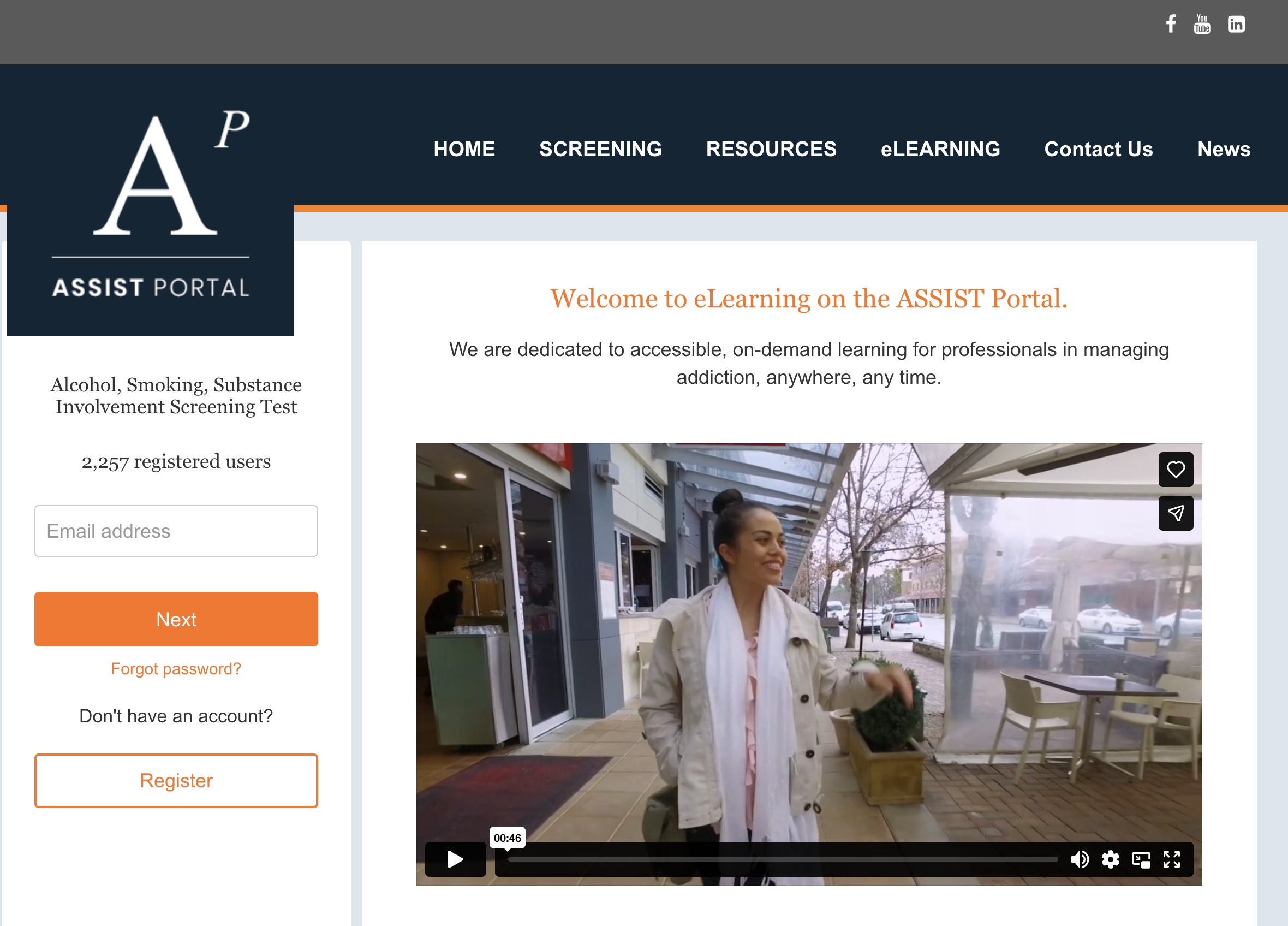
[WordPress site] ASSIST
https://assistportal.com.au/
Learner portal: https://learn.assistportal.com.au/
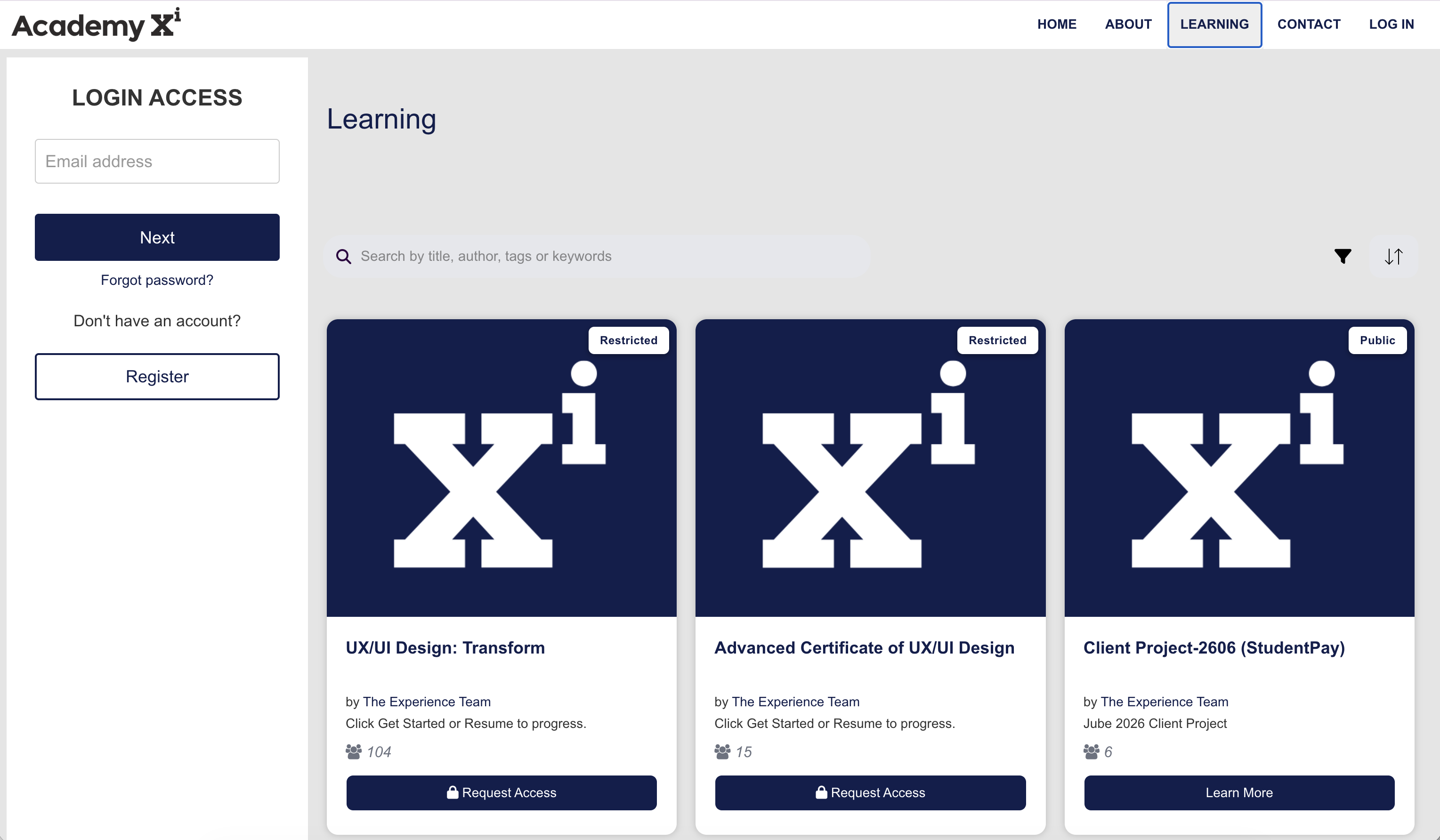
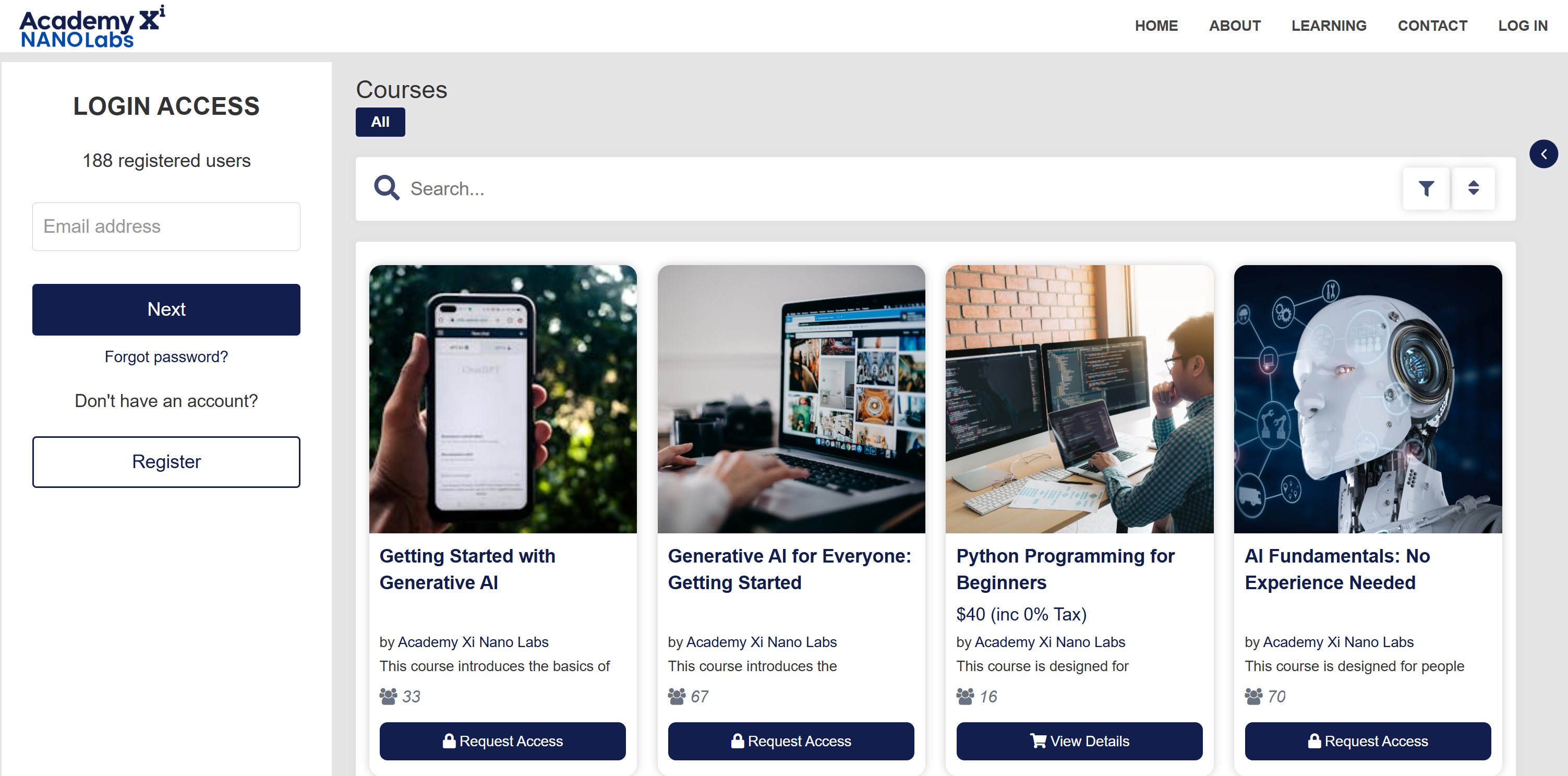
Academy Xi (Coursebox used as website, shop, and LMS)
https://innovate.academyxi.com/#/learning/search
Main site: https://academyxi.com/
Learner portal: https://xilearn.academyxi.com/